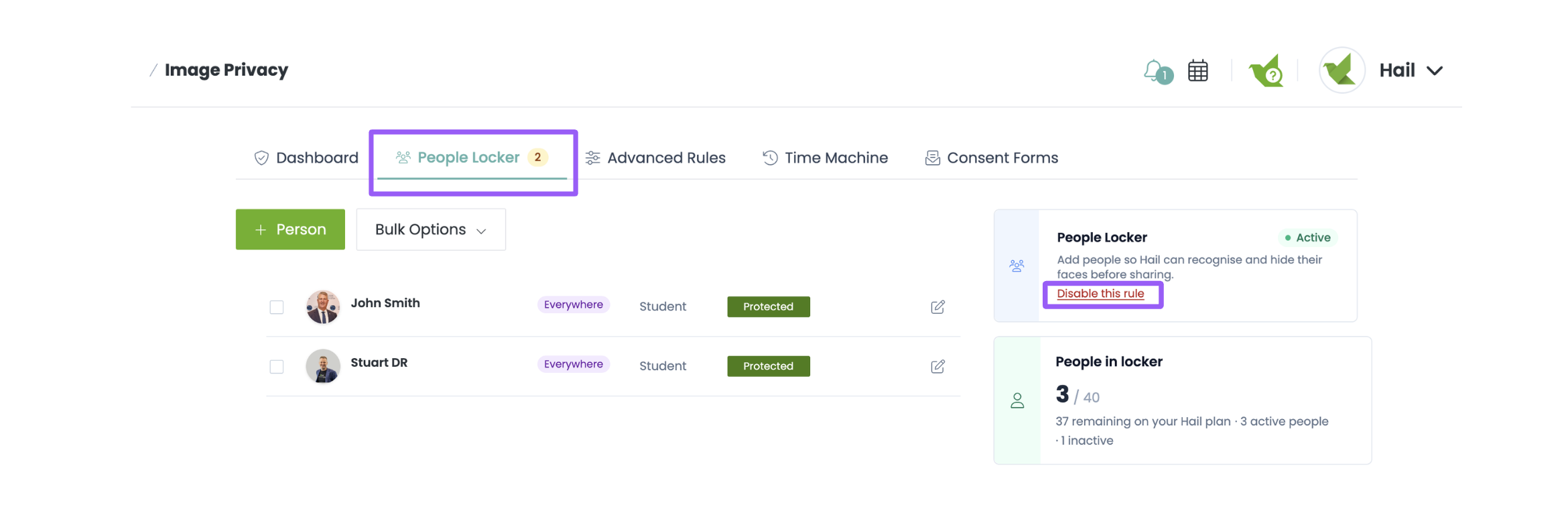
Turning on Image Privacy
Turning On Image Privacy and Giving Your Team Access
Image Privacy handles sensitive information - reference photos, consent records and privacy preferences - so access to it is deliberately limited. Only Consent Officers can open it and make changes.
This article covers switching the feature on for the first time and choosing who in your team can use it.
🔒 Who can access Image Privacy
Everyone in your organisation will see Image Privacy in the left-hand menu, but only Consent Officers can open it. For everyone else it appears with a padlock.
- Organisation owners always have access and their access cannot be turned off.
- Admins have access as well and can give other members access, however, access can also be turned off for admins.
- Any other members need to be given Consent Officer access.
How to give someone Consent Officer access
- Head to Members in the left-hand menu, under Settings.
- Find the person in your members list.
- Switch on the toggle in the Consent Officer column.
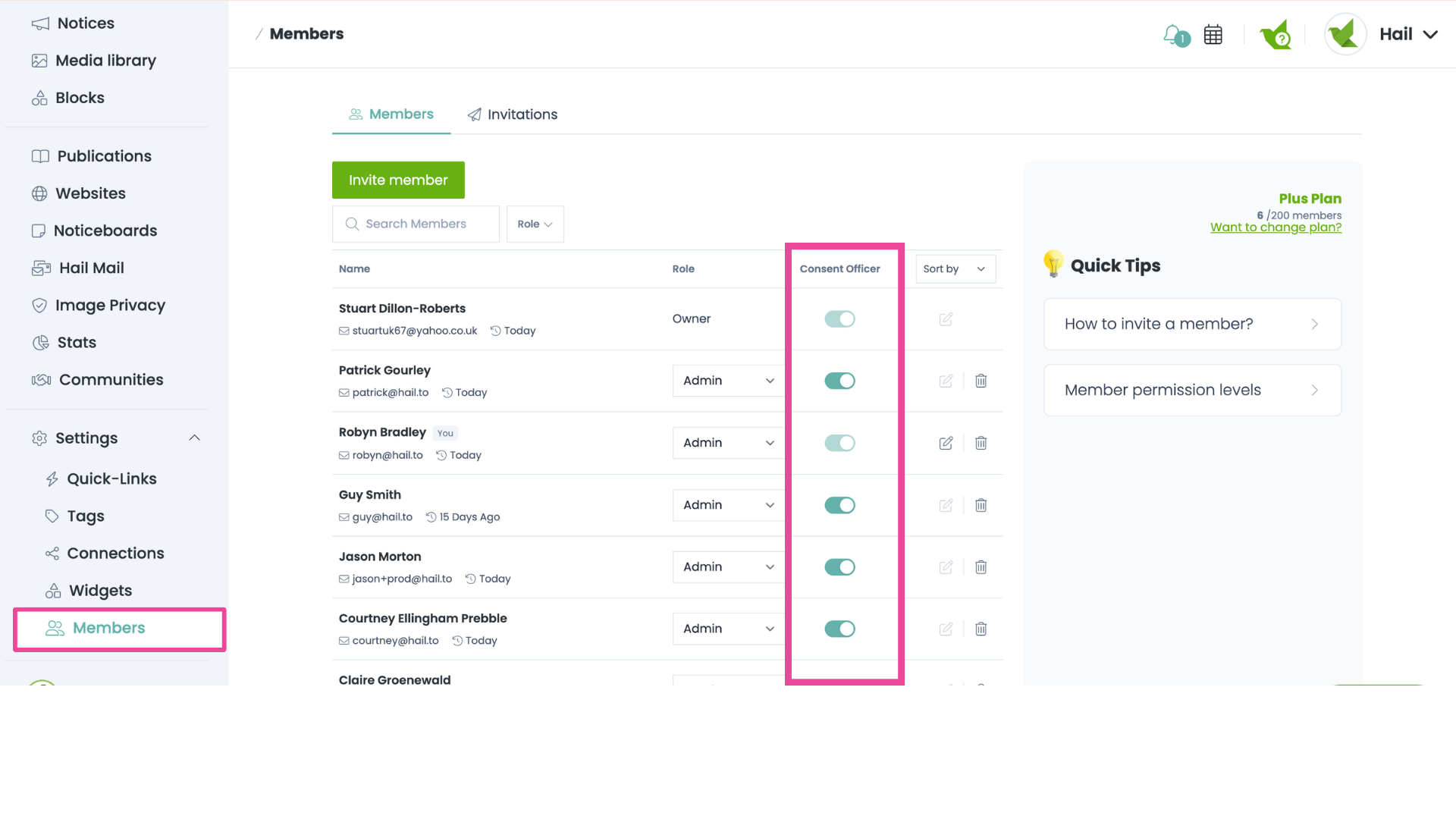
That's it - next time they load Hail, Image Privacy will open for them.
Note: Owners can't be toggled off, and you can't change your own access. Ask another admin or the account owner if you need your own access adjusted.
How to turn on Image Privacy
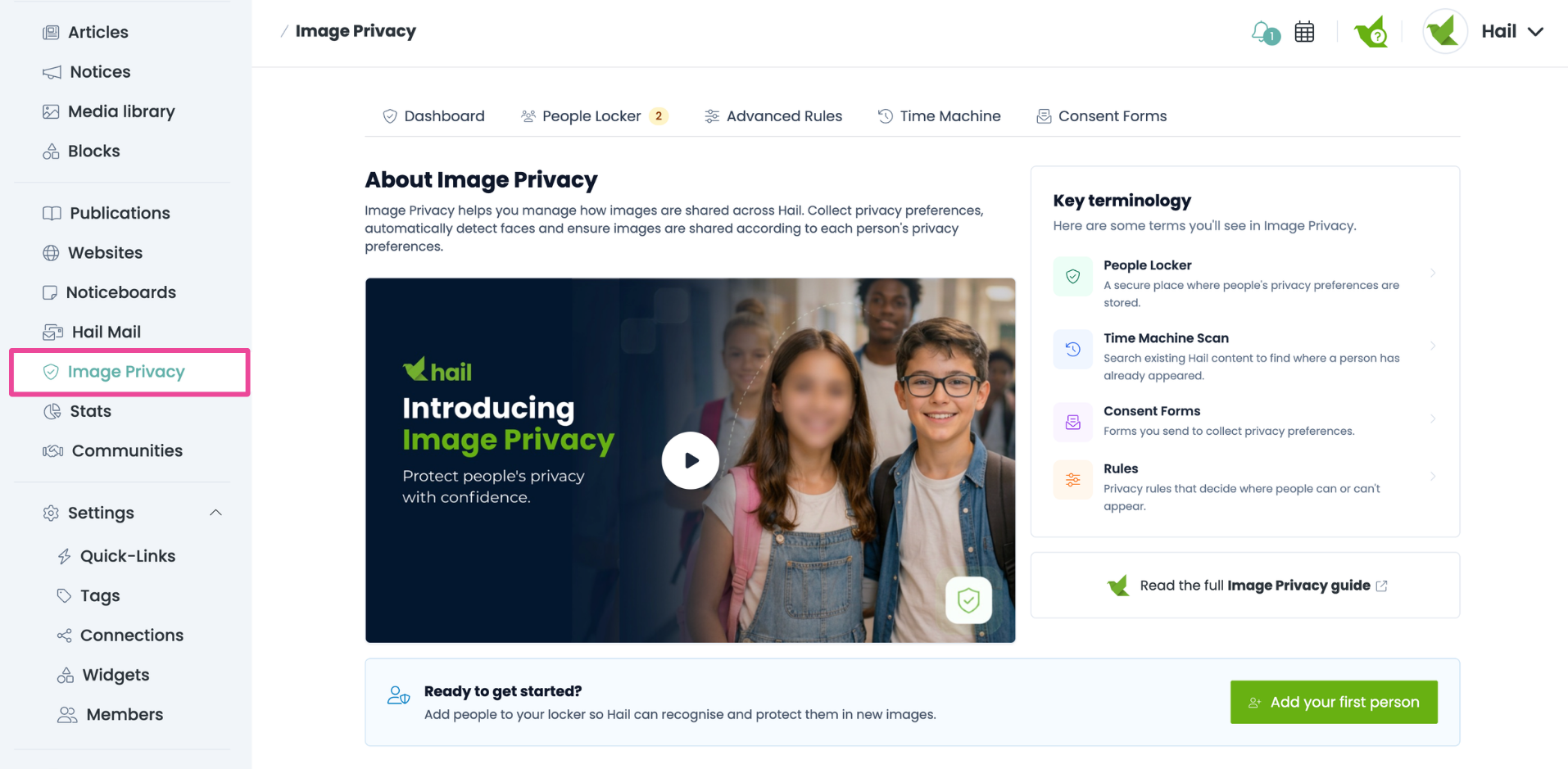
The first time you open Image Privacy, you will open the About tab which explains how the feature works. Watch the video for a quick understanding of where to start and key terminology.
To turn on Image Privacy, follow these steps:
1. Navigate to Image Privacy in the left-hand menu.
2. On the About page, read through the provided information to understand how the feature works.
3. Choose the rule you'd like to apply:
- People Locker: Start by adding individuals and their privacy preferences.
- Advanced Rules: Set organisation-wide protections (if needed for advanced privacy).
4. If starting with the People Locker:
- Go to the People Locker tab.
- Read how it works and check the confirmation box to enable Image Privacy.
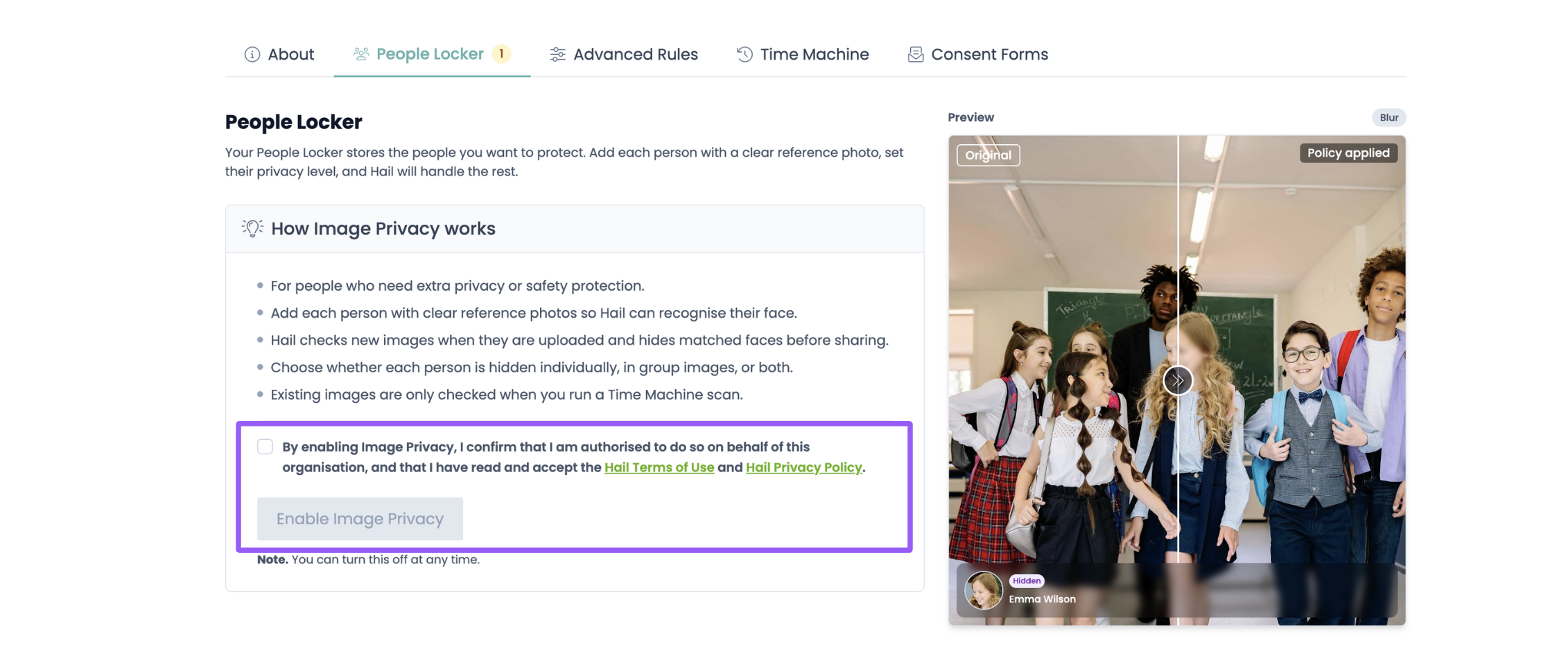
Your People Locker is now ready and you can start adding people.
(If you organisation needs more advanced privacy protection- your firszt step is Advanced Rules.)
Note. You can turn Image Privacy off again at any time. Turning it off stops new images being checked - it doesn't undo protection already applied to content you've published.