
Adding People to your People Locker
The People Locker is a secure place where you add the people you'd like to protect. Each person is added with a clear reference photo so Hail knows who to look for in future uploads.
Once someone's in your locker, every new image you upload is checked against their reference photo - and if they're recognised, their privacy settings are applied before the content goes anywhere.
How to add someone to your people locker
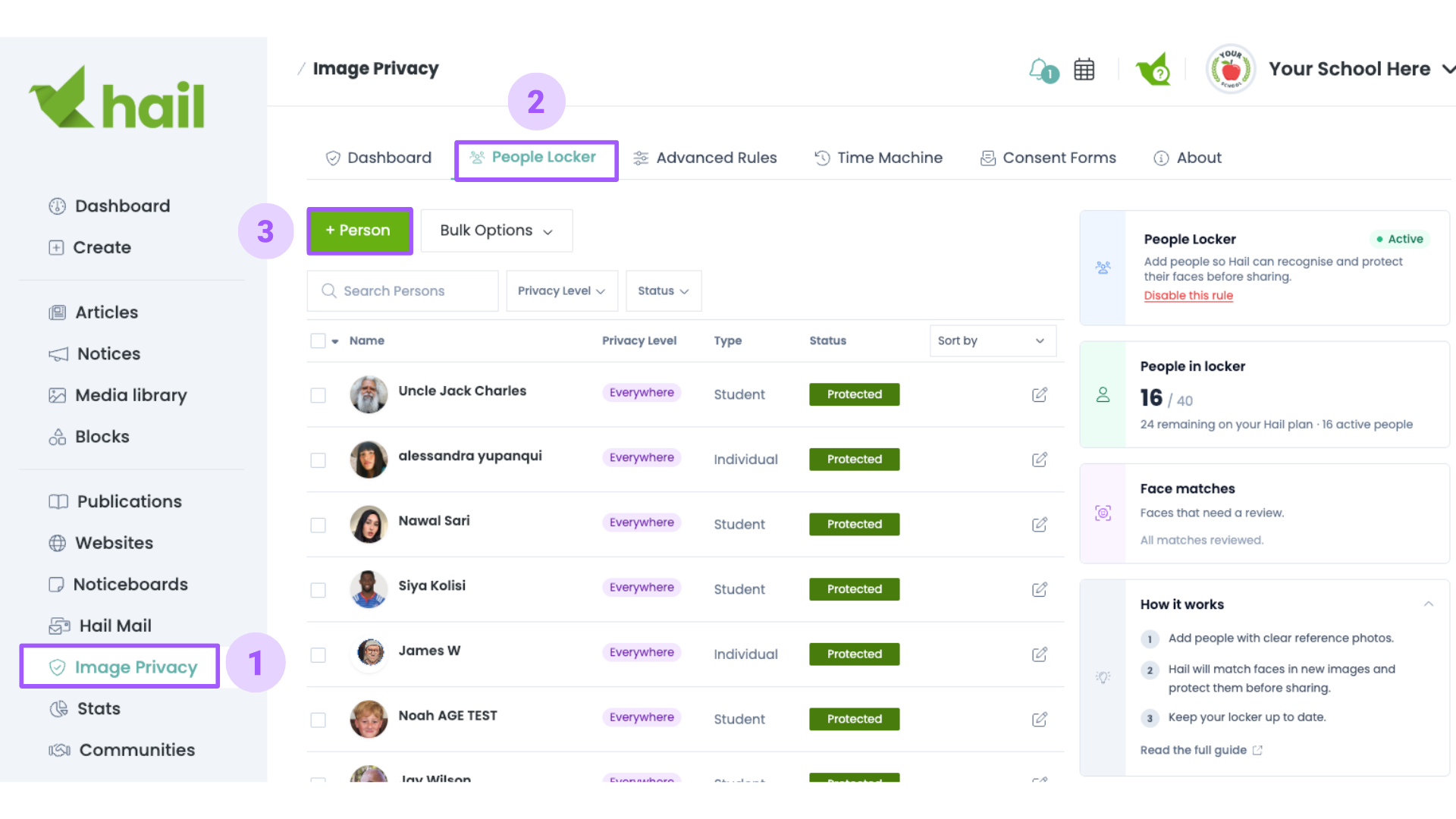
- Head to Image Privacy in the left-hand menu
- Click the People Locker tab. (If it is your first time adding a person to your locker, you will first need to read through some Terms of Use and then click enable, before you get started)
-
Click + Person
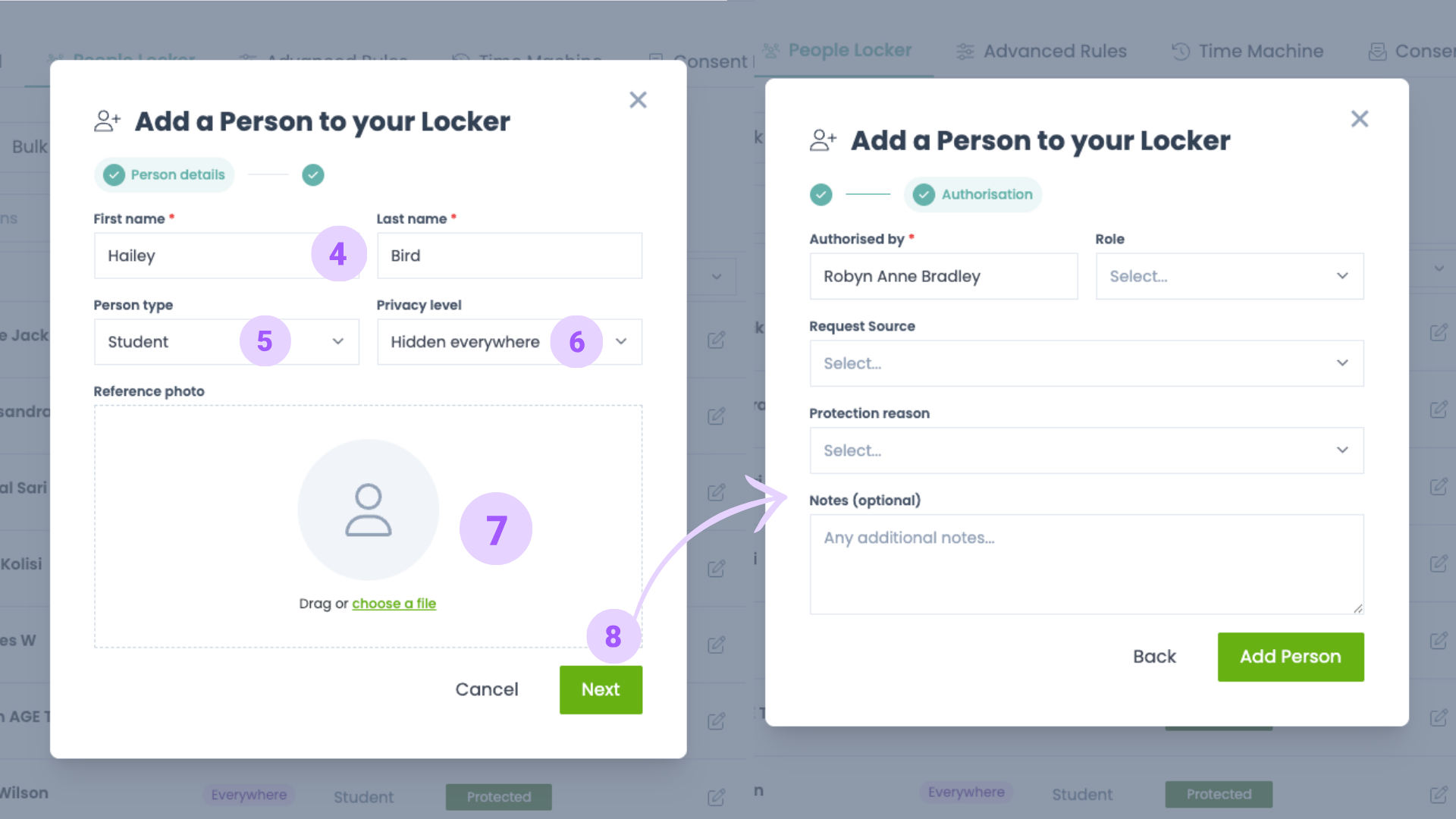
- Enter their First name and Last name.
- Choose a Person type - Student, Staff or Individual.
- Choose their Privacy level (more on this below).
- Add a Reference photo by dragging one in or clicking to upload.
- Move through to the Authorisation step, record who authorised the protection and why, then save.
Hail processes the reference photo in the background. You'll see a note on the person's record while that's happening - protection starts as soon as it's finished processing and confirms that the reference picture has been accepted.

Choosing a privacy level
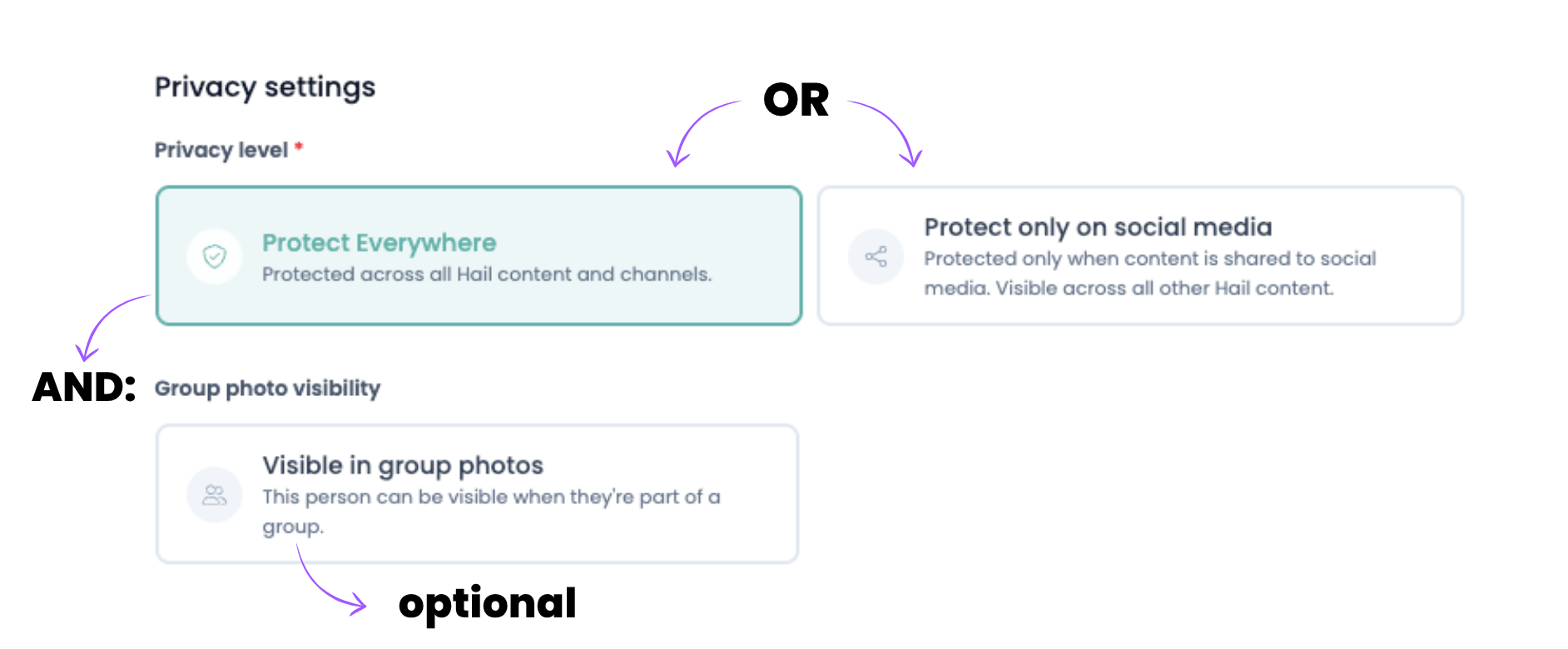
Hidden everywhere - their face is protected across all Hail content and every channel you share to. This is the strongest level for an individual.
Social media only - their face is protected when content is shared to Facebook, Instagram and LinkedIn, but they appear as normal in your Hail articles, newsletters and websites.
You can change someone's level at any time from their person page, and new uploads will follow the updated setting straight away.
💡 Reference photo tips
Face matching is only ever as good as the photo you give it. For the best results:
- One person only in the photo.
- Looking towards the camera, with the face clearly visible.
- Good lighting, and no sunglasses, masks or anything covering the face.
- At least 200 x 200 pixels.
- Recent - photos older than two years may reduce match accuracy, especially for children.
You can add more than one reference photo per person, which helps if their appearance has changed.
Extra settings on a person's page
Click any person in your locker to open their record, where you'll find a few more options:
- Visible in group photos - lets someone appear when they're part of a group, while still being protected in photos where they're prominent.
- Face Cover Style - override your organisation's default cover for this person.
- Pause - temporarily stop checking new uploads for this person without deleting them.
- Match history - every image where this person has been recognised after being added.
Keeping your locker up to date
Image Privacy works best when your locker reflects reality. It's worth reviewing when:
- New students or staff join your organisation.
- Someone's privacy preferences change, or consent is withdrawn.
- You receive updated consent.
- A person's reference photo no longer looks much like them.
Note. Adding someone protects new uploads from that moment on. If they already appear in content you've published and you would like that content protected as well, you will need to run a Time Machine Scan to find and protect those images too.