
Bulk Importing People to your People locker
Bulk Importing People and Reference Photos
Adding people one at a time is fine for a handful. If you're protecting a whole year group - or your entire roll - the People Locker has four faster ways to build your list.
Head to Image Privacy in the left-hand menu, open the People Locker tab, and click Bulk Options.
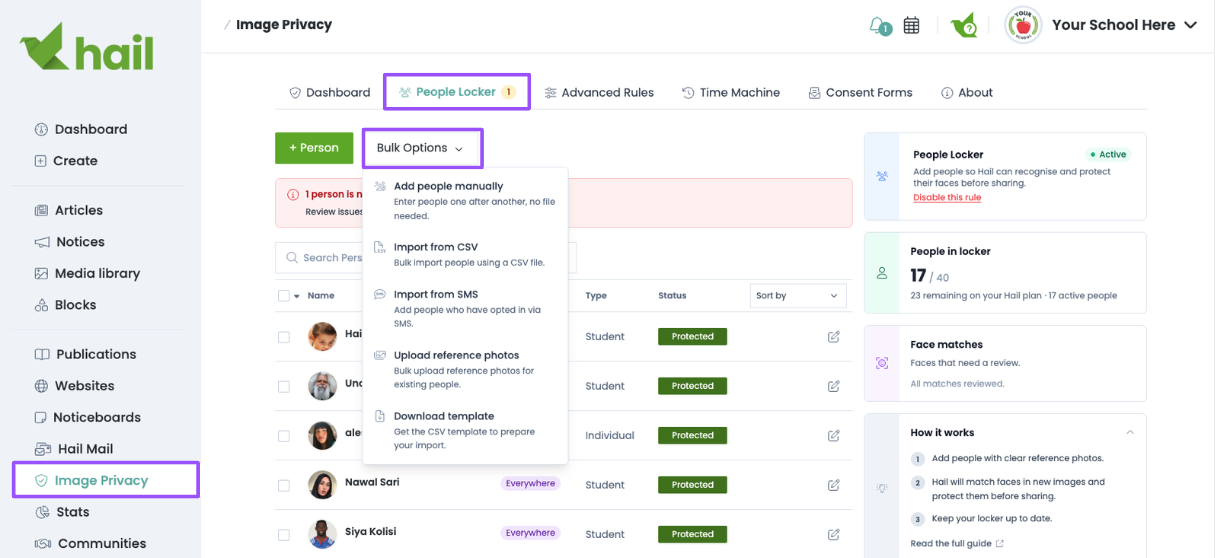
Add people manually
Enter people one at a time.
- Click +Person.
- Type each person's first name, last name, type and privacy level into the rows.
- Attach a reference photo to each row as you go, or leave them and add photos later.
- Save when you're done.
Import from CSV
Best for larger lists you already hold in a spreadsheet or can export from another system.
- Click Import from CSV.
- Click Download template to get a correctly formatted starter file.
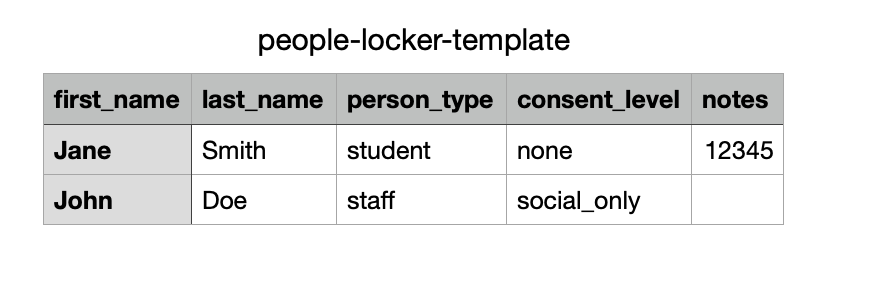
- Fill it in, save it as a
.csv, then upload it. - Check the column mapping - Hail matches your headings automatically, and you can correct anything it's guessed wrong using the dropdowns. Columns you don't need can be set to Skip.
- Review the preview rows, then import.
You can map columns to First name, Last name, Full name, Type, Privacy level and Notes.
Tip: If you are uploading a whole list of people and you have their photos labelled with a specific staff or student number (or some sort of identifier), add the number to the notes column so that you can do a bulk upload of images after this step and Hail will be able to recognise the images and connect them to a person.
Import from SMS (education customers only)
If your student management system is connected to Hail, you can pull your roster straight through.
- Click Import from SMS.
- Choose Students or Staff, and filter by year level if you need to.
- Select the people you'd like to add and import them.
Note. Photos don't come through from your SMS - you'll need to add reference photos afterwards using the option below. If you don't have an SMS integration set up yet, contact us at support@hail.to.
Upload reference photos
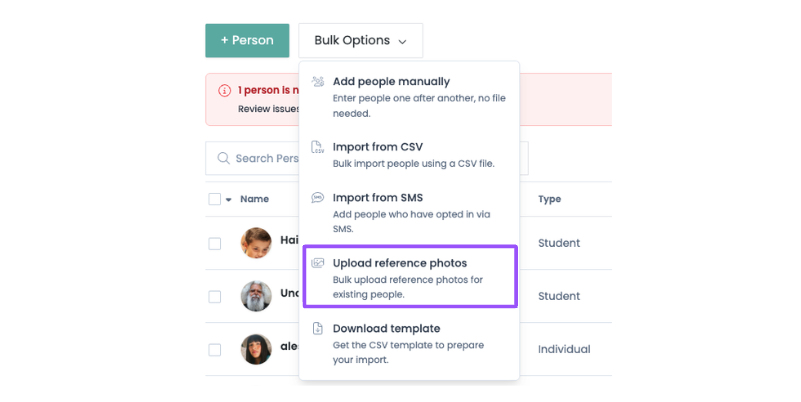
Already have people in your locker without photos? Upload a batch and Hail will match them to the right person by filename.
- Click Upload reference photos.
- Name your image files to match, then drag them in.
Hail matches filenames two ways:
- By name -
jane_smith.jpgmatches Jane Smith. - By unique ID -
12345.jpgmatches the person whose Notes field contains 12345.
Anything that can't be matched automatically is listed so you can assign it by hand. Tick Only people without a photo to focus on the gaps.
Expert tip. If you're importing from a school photographer's export, the files are often already named by student ID. Put those same IDs in the Notes column of your CSV import and the photos will land on the right people without you renaming a thing.
After importing
Reference photos are processed in the background, so a large import won't be protecting anyone the instant it finishes. Give it a few minutes, then check the People Locker list - anyone still needing attention is flagged, usually because the photo was unclear or no face could be found.