
Advanced Rules for Image Privacy
Setting Up Advanced Rules
Your People Locker protects the individual people you've named and uploaded. Advanced Rules protect everyone - they're organisation-wide settings that automatically hide every detected face in certain situations, without you having to add a single person.
They work alongside your People Locker rather than replacing it, and you can turn them on whenever you need a higher level of protection.
Head to Image Privacy in the left-hand menu and open the Advanced Rules tab.
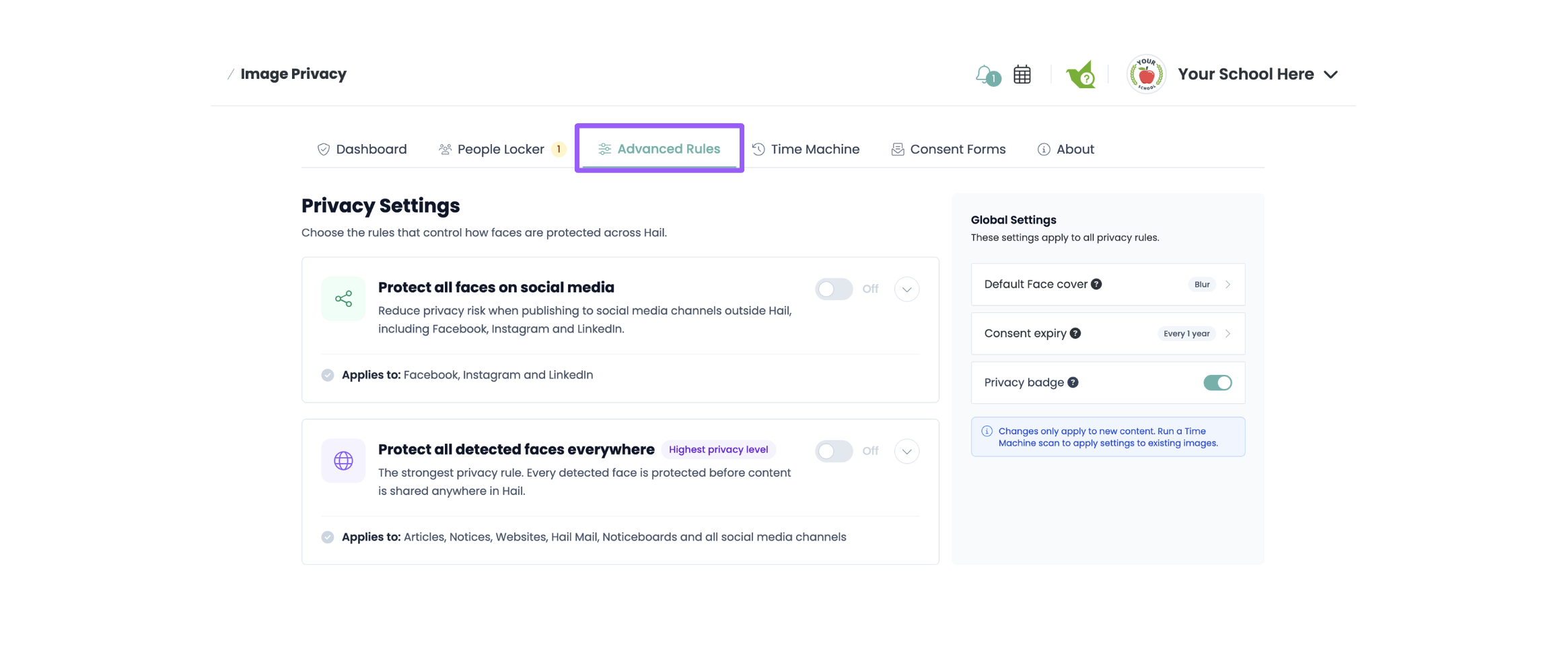
The two rules
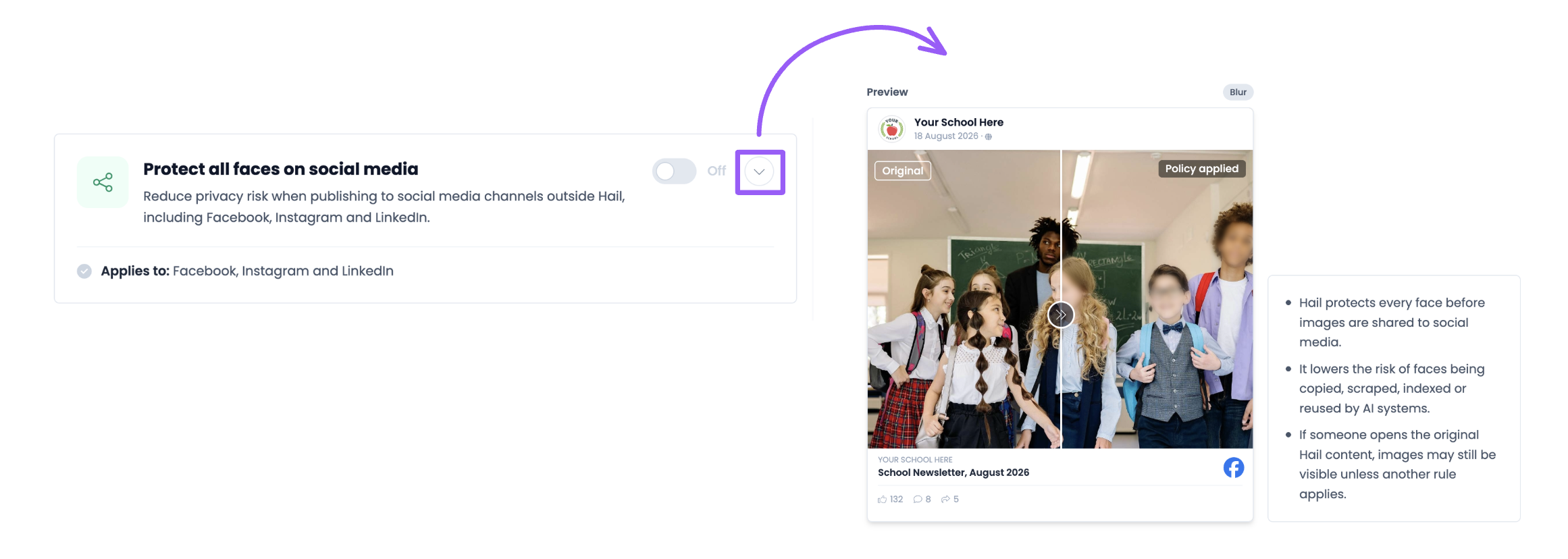
Protect all faces on social media
Every detected face is protected before images are shared to Facebook, Instagram and LinkedIn. Your original images stay exactly as they are inside Hail - this only changes what leaves for social platforms.
Best for schools, public events, marketing content, and any organisation wanting extra protection on public channels.
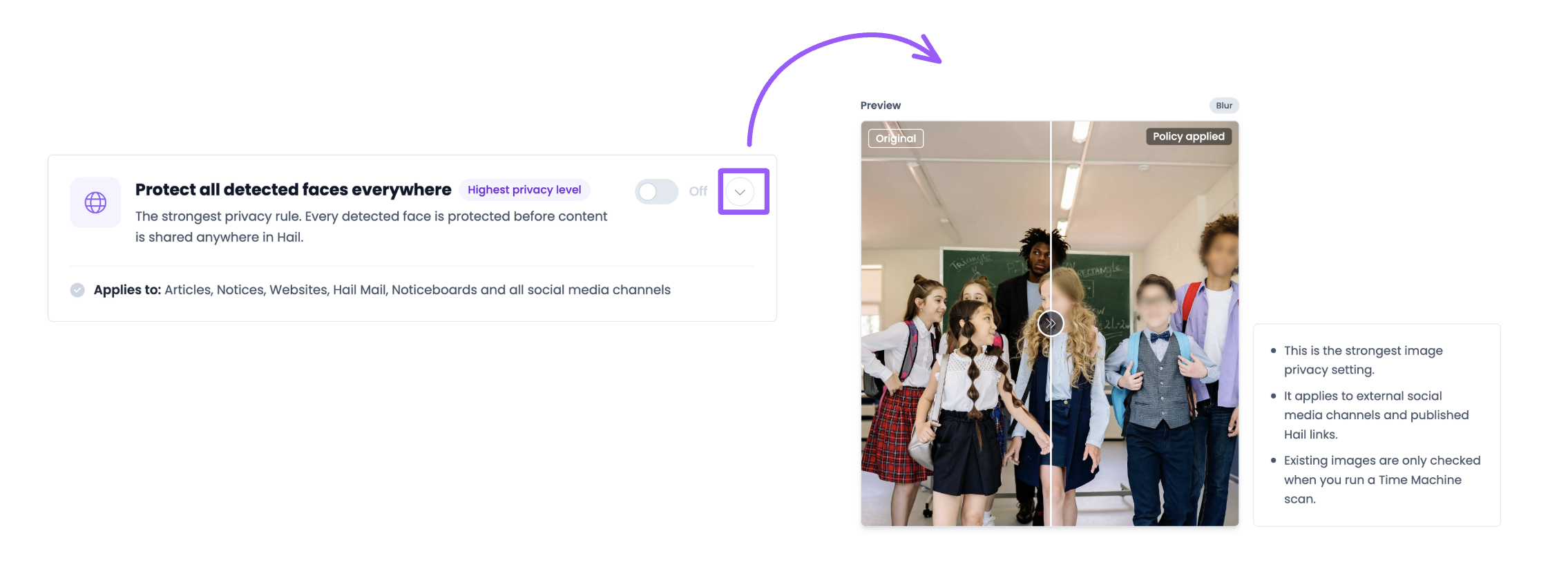
Protect all detected faces everywhere
The strongest rule available. Every detected face is protected before content is shared anywhere - articles, notices, websites, Hail Mail, noticeboards and all social media channels.
Best for high-privacy environments, sensitive communities, and organisations with strict privacy requirements.
How to turn a rule on
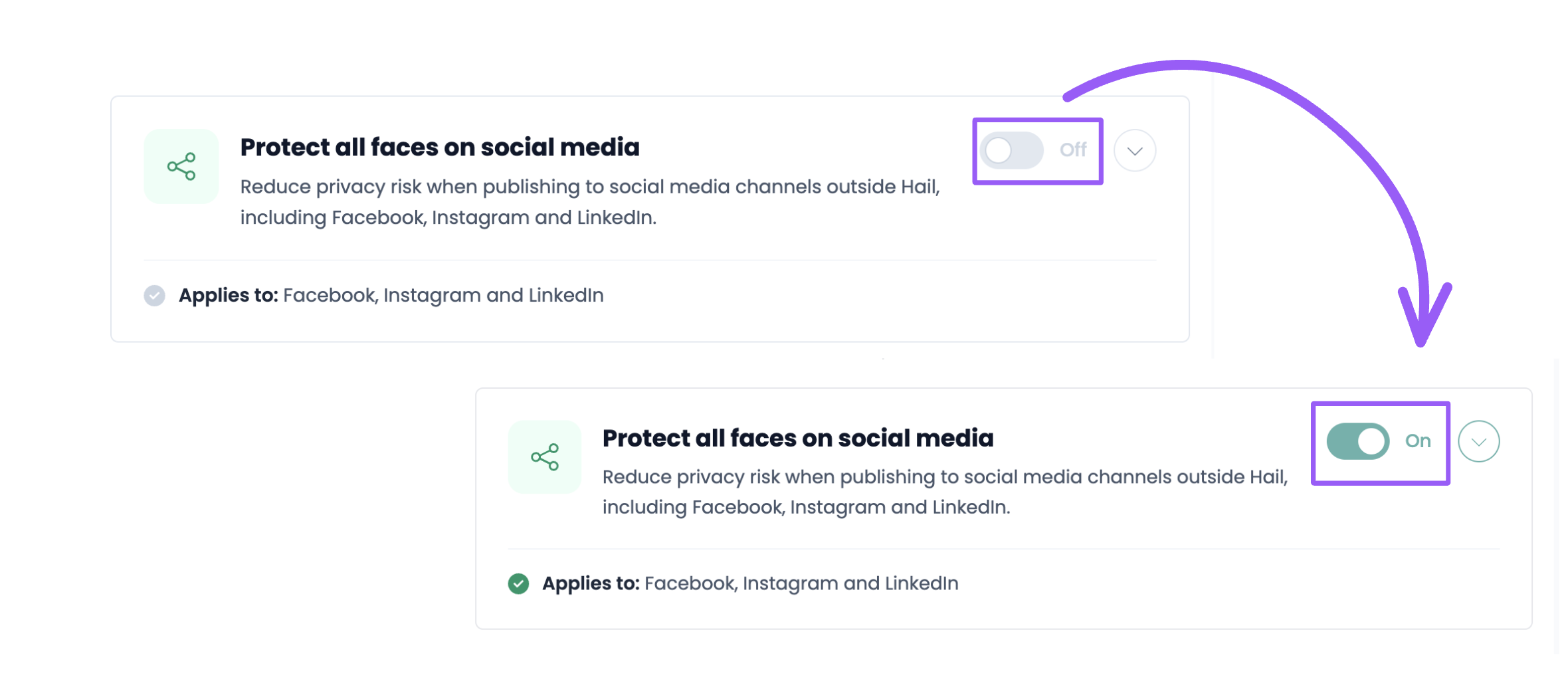
- Click the toggle beside the rule.
- Read the confirmation and confirm.
- Click the chevron beside any rule to preview what it does before you commit.
Once a rule is on, Hail checks every new image you upload, detects the faces in it, and protects them automatically. There's nothing extra for your team to remember.
Global settings
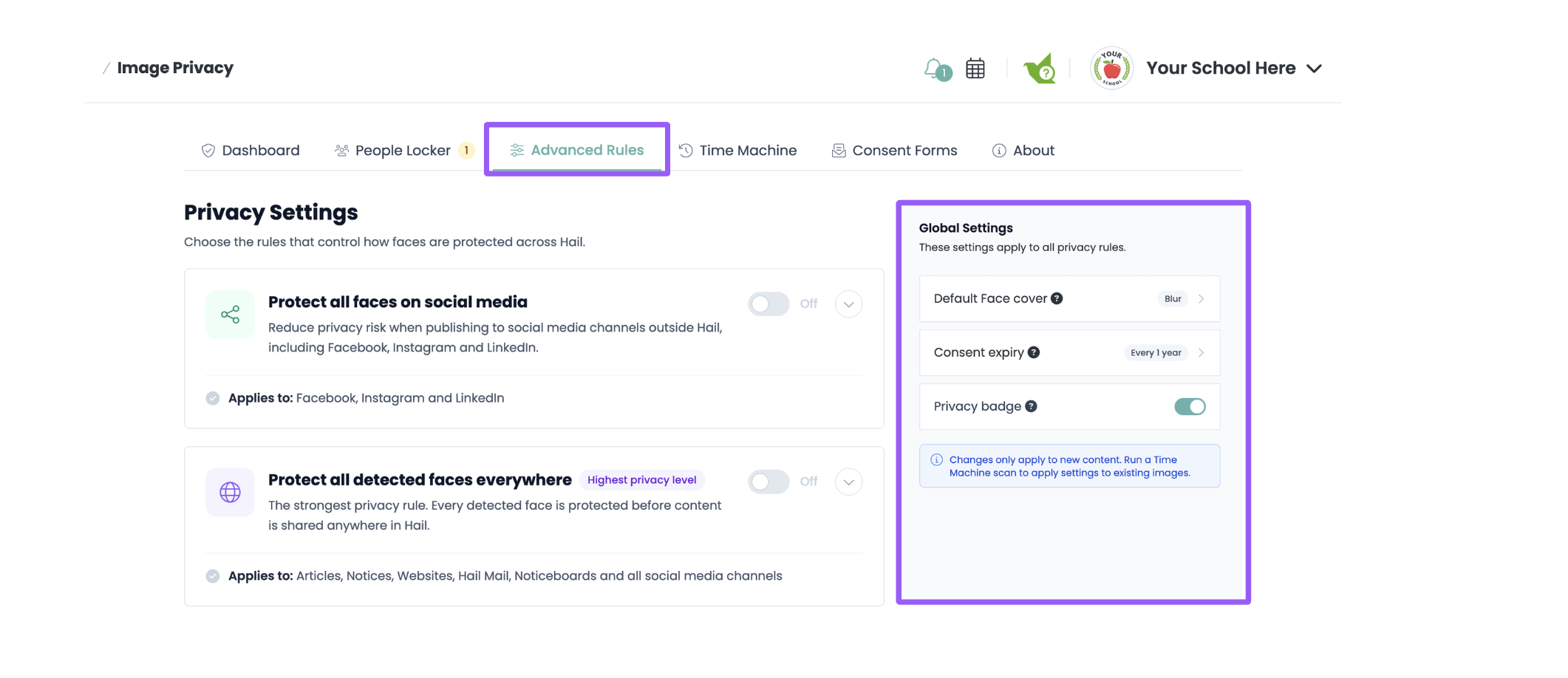
On the right of the Advanced Rules tab you'll find settings that apply across every privacy rule:
Default Face cover - how faces are covered when they're protected. Choose Blur, Pixelate, an Emoji, or upload a Custom overlay image of your own. Individual people can override this on their own page if needed.
Consent expiry - how long consent lasts before someone must re-confirm. Choose from 6 months up to 3 years, or Never to switch reviews off.
Privacy badge - shows a small badge on images where faces have been protected, so readers know the change was deliberate.
Turning a rule off
Click the toggle again and confirm. You'll be asked to acknowledge what changes, because it's a meaningful step:
- New content will no longer have faces protected under that rule.
- Any other active rules - including your People Locker - keep working as normal.
- Existing content that already has protected faces is not reverted.
Note: Rule changes only apply to new content. To apply a new setting to images you've already published, run a Time Machine Scan.
🌐 Why protect faces on social media?
Once an image is shared publicly it can be copied, downloaded, reshared or used in ways you can't control. Hiding faces before publishing helps reduce risks including:
- Images being copied or redistributed without permission.
- Facial recognition technology identifying people from public photos.
- Images being collected to train AI systems.
- Deepfake technology using facial images to create fake photos or videos.
- Unwanted online exposure of children, students, staff and vulnerable people.
No technology removes every risk, but reducing how much identifiable facial information you put online is one practical way to strengthen privacy.