
Editing Map Blocks
Map blocks display an embedded Google Map on your website, highlighting your organisation's location. They're ideal for helping visitors find your physical address.
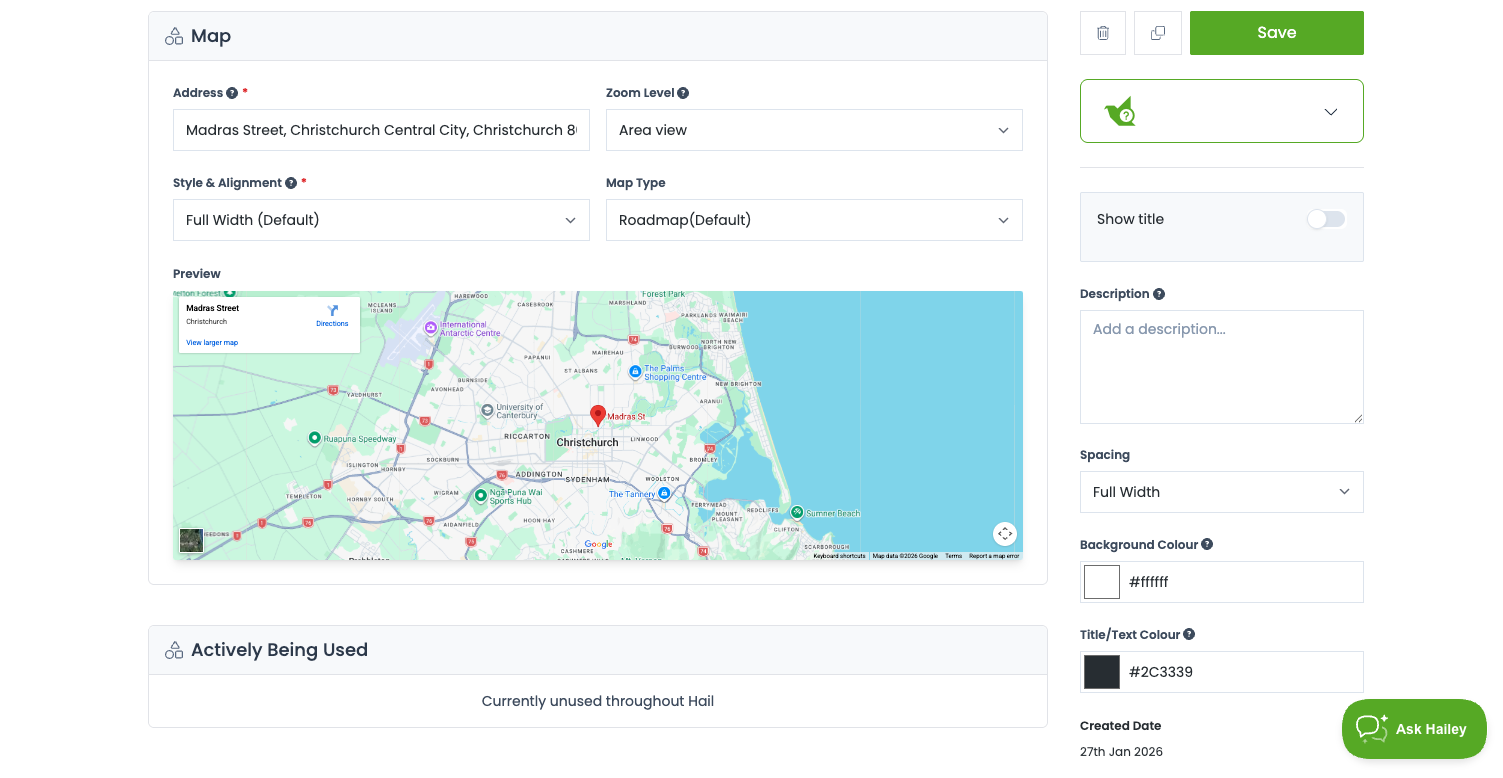
Creating a Map Block
- Navigate to the Blocks section in the left-hand menu.
- Click + Block.
- Select the Map style.
- Enter a title (e.g. "Find Us") and click Create.
> Note: Map blocks are available on the Creative website style. They are not available on the Classic website style.
[Screenshot: Block creation screen with Map style selected]
Editing Your Map Block
Setting a Location
Enter your address in the Location field. Hail will geocode the address to place a pin on the map. You can also set specific latitude and longitude coordinates for precise positioning.
[Screenshot: Map block editor showing location field and coordinate inputs]
Map Type
Choose how the map renders:
- Roadmap — Standard street map (default)
- Satellite — Aerial/satellite imagery
Zoom Level
Adjust the zoom level to control how close or far the map view is. A higher number zooms in closer to your location; a lower number shows a wider area.
Spacing
Choose between: - Standard — Dark overlay background with standard padding - No space — Custom background colour in a contained box
Content Section
Alongside the map, you can display:
- Title — The block heading (e.g. "Find Us" or "Our Location").
- Description — Additional text such as directions, parking info, or opening hours.
- Address — Automatically displayed with a map pin icon.
Block Settings
In the sidebar you can edit:
- Title — The block heading displayed publicly.
- Description — Internal notes only; not displayed publicly.
At the bottom of the edit screen, you can see any locations where the block is currently in use.
Tips
- The Half-width variants work well when you have directions or contact details to display alongside the map.
- Use Full-width for a bold, visual location display at the bottom of your homepage.
- Set a zoom level that shows enough surrounding context for visitors to orient themselves - usually around 14–16 for a street-level view.